 What if students could get help working through a problem while you’re helping another group? Guided Learning in Google Classroom lets you attach an AI-supported activity to an assignment using materials from your own lesson. Students can ask questions, explain where they’re stuck, and work through ideas with Gemini.
The goal is support, not an answer machine. Guided Learning is designed to ask questions and offer hints that help students keep thinking.
The feature is included in Google Workspace for Education Fundamentals, Standard, and Plus. Your school must enable Gemini for teachers and students, and availability may still be rolling out. Check Google’s announcement for current availability.
What Is Guided Learning in Google Classroom?
You add Guided Learning to a Classroom assignment and select class materials to give Gemini context. Students then open a focused conversation about the work.
Teachers can review insights from assigned activities. Student chat transcripts are available when Gemini activity is on. Google says AI-generated insights are not intended for assessment or placement, so always check them against student work.
Video: Google’s official Guided Learning demonstration.
*Related: Gemini Immersive Explorations: Interactive Learning for Students
How to Set Up Guided Learning in Google Classroom
The steps below follow Google’s official Classroom demonstration. The screenshots are from Google’s demo, not a test in our own school account.
1. Choose One Focused Lesson Resource
Start with a short reading, worked example, or set of notes that clearly explains the concept students will practice. Make sure students can access it.
Google recommends starting with one focused source and currently allows up to five. Check the current limit shown in your account.
Important: The directions you type in the Classroom assignment are for students. Gemini does not use those directions as instructions for the Guided Learning activity. Put the lesson content you want Gemini to use in the selected source.
2. Add the Guided Learning Activity
- Open or create an assignment in Google Classroom.
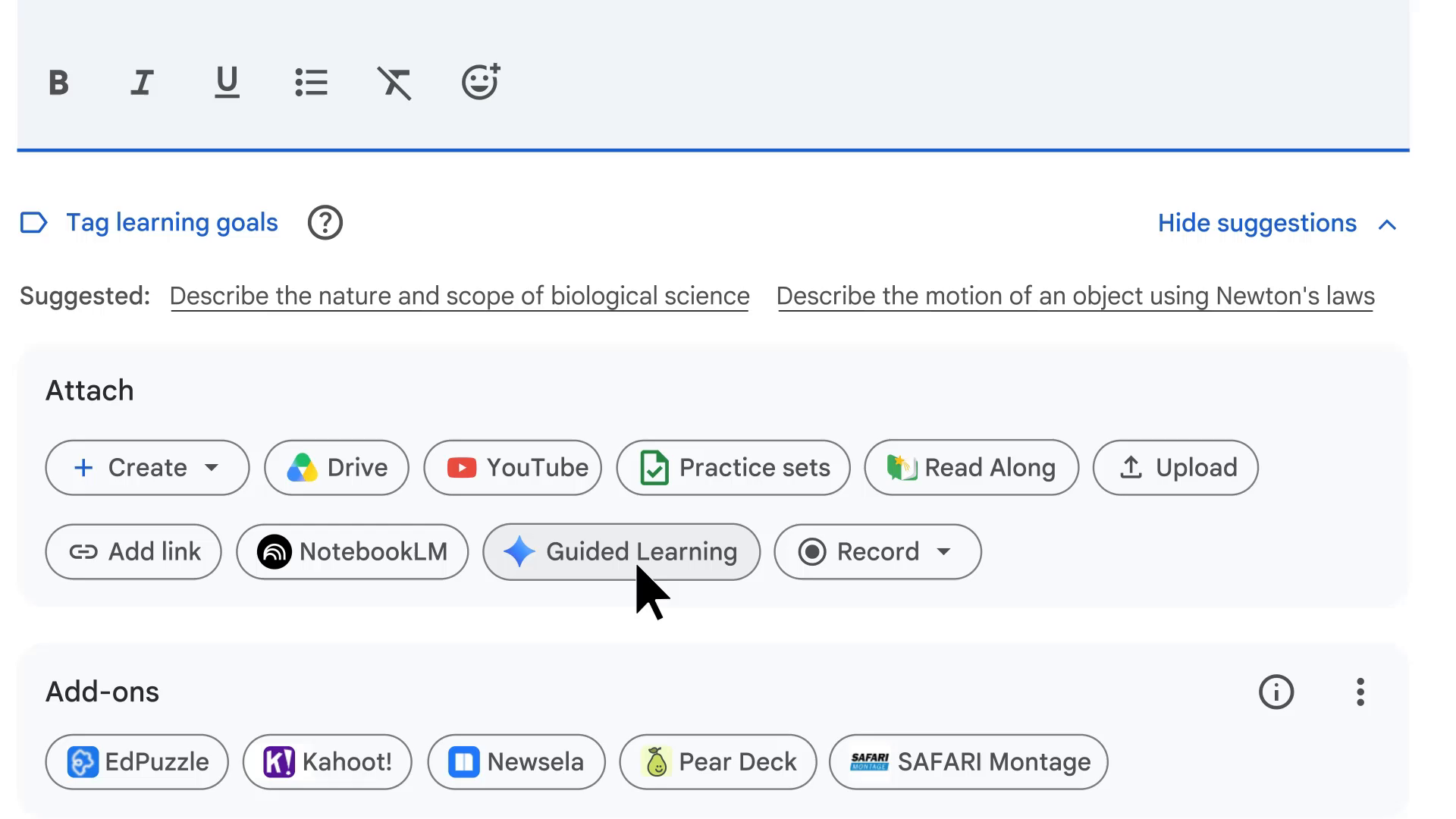
- Under Attach, select Guided Learning.
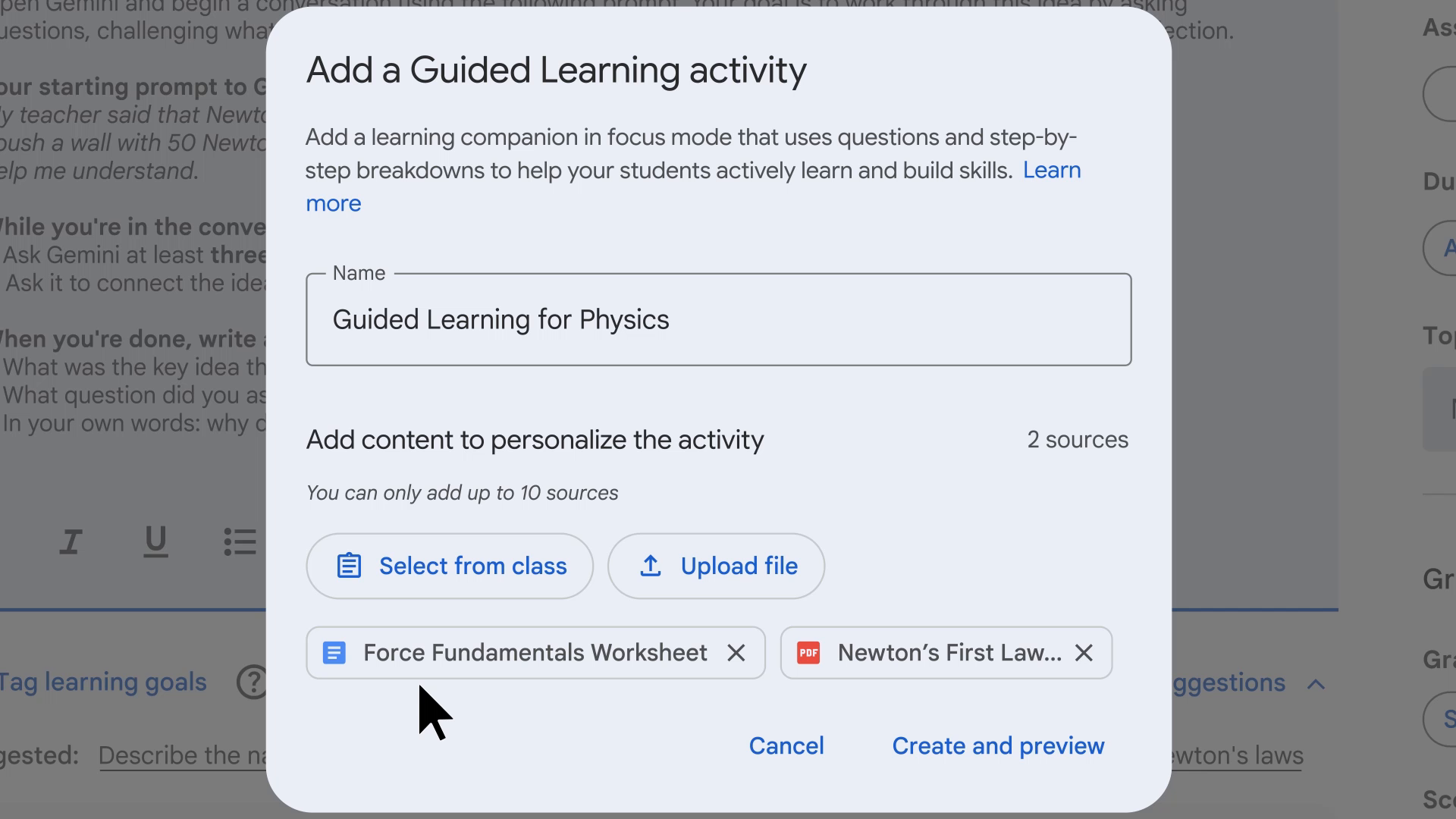
- Enter a descriptive name for the activity.
- Choose Select from class.
- Select the lesson files, then choose Add.
- Select Create and preview.
You can also choose Upload file to use a resource from your computer.
3. Preview It Like a Student
Ask a question a student might actually ask. Try explaining something incorrectly. Then ask for the answer and see how the activity responds.
Does it match your lesson materials? Is the language understandable? Does it help the learner work through the idea? If not, revise the source or choose a smaller task.
4. Give Students a Clear Routine
- Read the class material and make a first attempt.
- Open Guided Learning and explain what you tried.
- Use the questions and hints to work through the idea.
- Close the chat and complete the follow-up task in your own words.
- Tell the teacher what became clearer and what still feels confusing.
After testing the preview, return to Classroom, finish the assignment settings, and select Assign when it is ready for students. Confirm student access before making it required work.
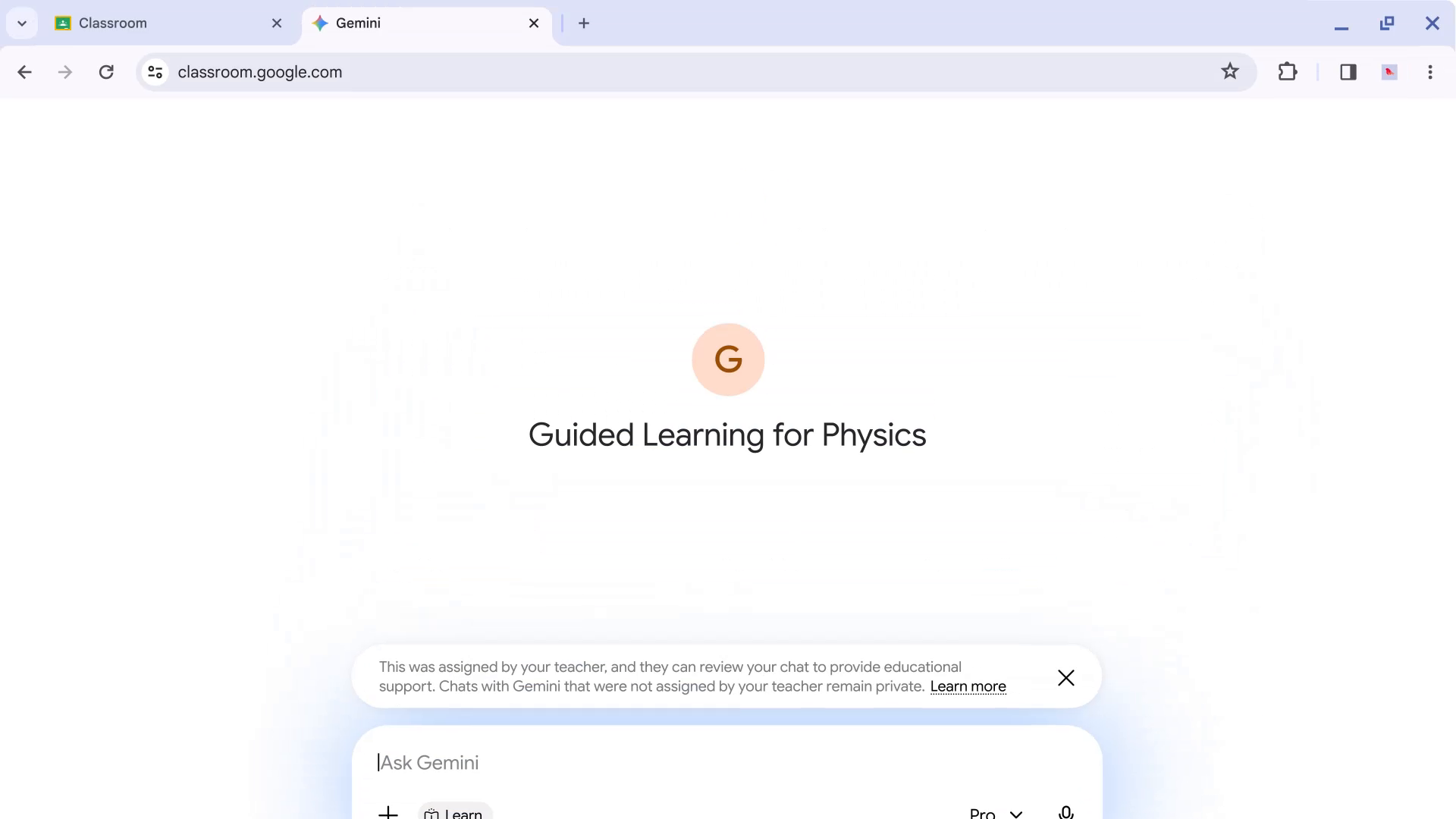
Students open the attachment from the Classroom assignment. To return later, they go back through Classwork; these assigned conversations do not appear in Gemini’s usual sidebar history. Google’s student guide explains the experience.
Use Insights to Plan What Comes Next
Select View more beneath the activity to open Insights. Google’s demo shows student usage, an overall summary, areas to support, and areas of strength. Selecting a student opens individual insights and links to available conversations.
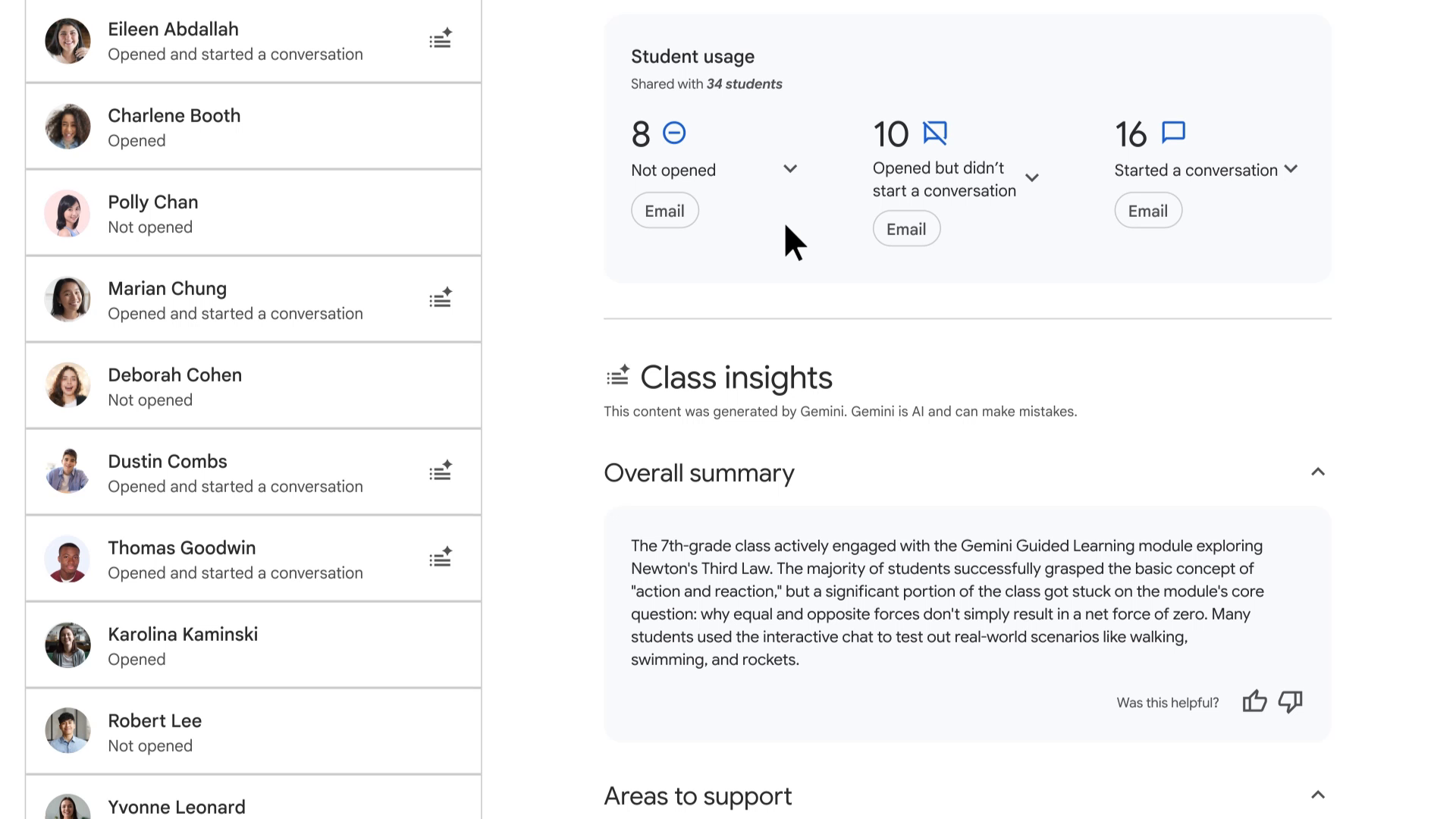
Use those patterns to decide where to look, then check the actual student work. You might reteach a concept, pull a small group, or ask students to compare two approaches.
Transcript access depends on Gemini activity being on. Google’s guidance on insights explains the settings and limits.

Lesson Ideas to Try
- Math: Students compare unit rates, explain the step that confused them, then solve a similar problem without the chat.
- Science: Students use class notes and a small data set to connect a claim to evidence, then identify what the investigation does not establish.
- English or social studies: Students test a claim against a short source, consider another interpretation, and write a final paragraph in their own words.
- Upper elementary reading: With school approval and close support, students use a short informational text, then draw or write an explanation using evidence from the text.
Start with one concept, one useful source, and one short follow-up that shows what students can do without the chat.
*Related: Top 20+ AI Tools for Teachers
Be Clear About Privacy and Teacher Review
Tell students you may review conversations from the assigned Guided Learning activity, subject to school settings. That does not give you access to their separate Gemini chats.
Use school-approved accounts and materials, keep private personal information out of the activity, and never let an AI summary determine a grade or student placement.
Keep Learning With ALL ACCESS

Want more practical ways to use AI and Google tools in your teaching?
The ALL ACCESS Teacher Membership includes on-demand professional learning, the members-only AI Prompt Library, and downloadable cheat sheets, guides, and templates.
Explore the ALL ACCESS Teacher Membership
© Shake Up Learning 2025. Unauthorized use and/or duplication of this material without express and written permission from this blog’s author and/or owner is strictly prohibited. Excerpts and links may be used, provided that full and clear credit is given to Kasey Bell and Shake Up Learning with appropriate and specific direction to the original content on ShakeUpLearning.com. See: Copyright Policy.