 Ever opened several Google Docs just to finish one task? You find the plan, then go looking for the materials list or the notes you need to update it.
Google Docs tabs can keep that related information together. Think of them as labeled sections inside one document. You can jump straight to the section you need instead of scrolling through a long file or opening another one.
There are some really useful ways to put this to work in your teacher life, from planning your week to keeping track of what your team actually decided in a meeting.
Start with one job that feels more scattered than it needs to be. You do not have to reorganize your entire Google Drive to try this!
How to Get Started with Google Docs Tabs
These directions are for Google Docs on a computer.
- Open a Google Doc and select Show tabs & outlines at the top left.
- Open the Tab options menu beside Tab 1 and choose Rename.
- Select Add tab to create another section.
- Use Tab options to Duplicate a tab or Add subtab. Drag tabs to reorder them.
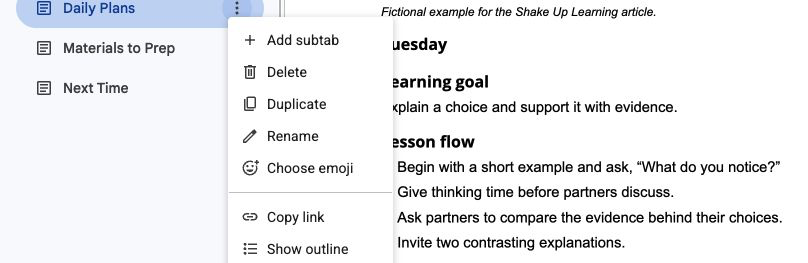
Use Tab options to duplicate a starting layout or copy a link to a specific tab. File permissions still apply.
You need editor access and editing mode to organize tabs. Each tab can also have its own outline.
For the current instructions, see Google’s guide to document tabs.
One important caution before we build anything: tabs are part of the same file, not separate privacy settings. A link to one tab does not hide the others. Keep information for different audiences in separate documents. Review Google’s file-sharing guidance.
1. Keep Your Weekly Planning Together
A weekly planning Doc can hold the details that tend to get separated from the actual lesson plan: schedule changes, materials to prepare, and reminders about what to adjust next time.
Use your school’s required planning system if you have one. This should replace a scattered set of working notes, not create another place where you have to enter the same information.
Try these four tabs:
- Week at a Glance: Week of [date]. Priorities: [ ]. Schedule changes: [ ]. Deadlines: [ ].
- Daily Plans: Day or class: [ ]. Learning goal: [ ]. Plan or link to required lesson plan: [ ]. Check for understanding: [ ].
- Materials to Prep: Item or link: [ ]. Needed by: [ ]. Ready: [yes/no].
- Next Time: What worked: [ ]. What needs changing: [ ]. Resource worth keeping: [ ].
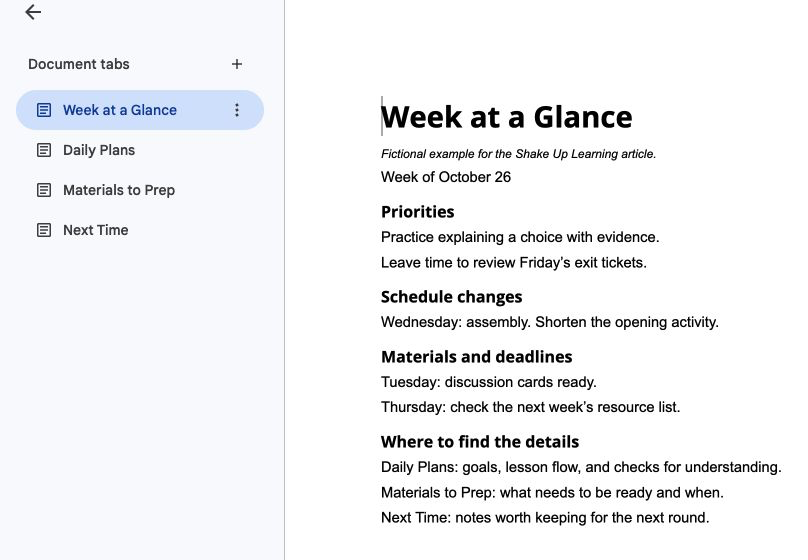
Keep the week’s overview, daily plans, prep list, and next-time notes in clearly named tabs.
For example, “Assembly Wednesday” belongs in the overview. “Print discussion cards by Tuesday” belongs in Materials to Prep. “Give students an example before the discussion” belongs in Next Time.
Those notes now have a home you can find while you are planning. A teacher with several subjects or course sections could use subtabs under Daily Plans, but keep the structure as simple as your work allows.
2. Give Team Meetings a Place for Decisions and Follow Through
Meeting notes are more useful when you can find the decision you need without rereading everything everyone said.
For a grade-level team, department, or professional learning community, try a shared notebook with a consistent structure:
- Start Here: Purpose of the team: [ ]. Recurring meeting time: [ ]. Links we use often: [ ].
- Meeting Notes: Date: [ ]. Question to resolve: [ ]. Notes or evidence: [ ]. Decision: [ ].
- Action Items: Task: [ ]. Owner: [ ]. Due date: [ ]. Status: [ ].
- Decisions to Revisit: Decision: [ ]. Date made: [ ]. When we will review it: [ ]. What we need to know: [ ].
Keep a clean Meeting Notes tab to duplicate, then rename each copy with the meeting date. At the end of the meeting, put the agreed tasks in Action Items. That is the tab to check when the next meeting begins.
A concrete entry might be: “Compare the two dismissal routines. Owner: [name]. Bring observations to the next meeting.” It tells the team what happens next without burying the task in a paragraph.
Use this only when everyone who can open the notebook is an appropriate audience for all its contents. Student-specific concerns and confidential conversations belong in the school’s approved system, not an ordinary shared team notebook.
3. Build Substitute Plans That Are Easy to Navigate
A substitute should not have to scroll past three pages of general information to find what happens after lunch.
Create a separate substitute-planning Doc with a few clearly named tabs:
- Start Here: Date: [ ]. Where materials are located: [ ]. School-approved way to get help: [ ].
- Schedule and Routines: Time or class: [ ]. What happens: [ ]. Transition directions: [ ].
- Plans for Today: Goal: [ ]. Directions: [ ]. Materials or links: [ ]. What students should finish: [ ].
- Backup Activities: Activity: [ ]. Materials: [ ]. Directions: [ ].
- Notes for the Teacher: What was completed: [ ]. Questions or follow-up: [ ].
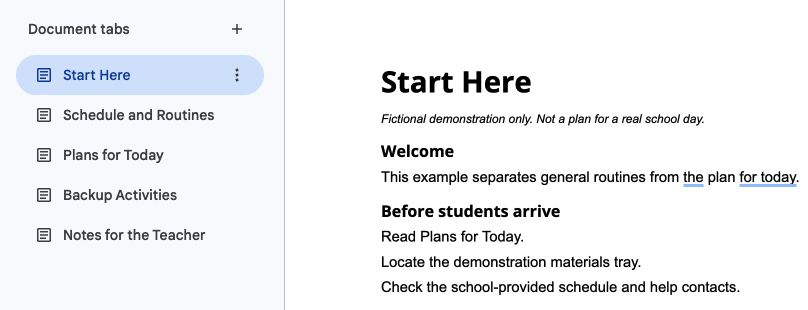
Use a separate substitute-planning file with clear tabs for the day’s plan, routines, backup activities, and follow-up notes.
Separate the information that stays the same from the plan that changes with each absence. Before sharing, update the date and daily directions, and remove stale information.
Check that the substitute can open the Doc and any linked files using the access your school provides. Keep confidential student information in approved channels, and never include account passwords in the document.
Prepare a paper backup when required or useful. A well-organized digital plan is helpful; a substitute locked out of it still needs a usable plan.
4. Make an Activity Bank You Will Actually Reuse
We save good ideas with the best intentions. The trouble comes when a file name gives us no clue why we saved it or when we would use it again.
Try organizing a teacher-only activity bank by instructional purpose. A short routine can work across many topics, so start with the kind of learning you want students to do.
Suggested tabs:
- Start a Lesson
- Get Students Talking
- Check Understanding
- Review and Reflect
Inside each tab, use the same entry format:
Activity name: [ ]
Use it when: [What do you need students to practice or show?]
Directions: [ ]
Materials or source link: [ ]
What to adjust next time: [ ]
Here is an example for Check Understanding:
Activity name: Fix One Mistake
Use it when: Students need to explain a concept, not just recognize a correct answer.
Directions: Show a short example with one deliberate error. Ask students to identify the error, correct it, and explain their reasoning.
Materials or source link: Link to your example. This could be a calculation, a sentence, a diagram, or a sequence of steps.
What to adjust next time: Note whether the error revealed the misunderstanding you wanted to check.
Link to existing slides, handouts, or source pages rather than duplicating every resource inside the Doc. If students need an activity, share a separate student-facing version. Keep answer keys and teacher notes out of student-shared files.
For more ideas to add, explore 27 Formative Assessment Tools for Your Classroom.
5. Turn Professional Learning Notes into Something You Try
A professional-learning notebook can help you carry one useful idea from a webinar, book study, or training into your work.
Give the follow-through as much space as the notes:
- Session Notes: Title and date: [ ]. Presenter or author: [ ]. Key ideas: [ ]. Resource links: [ ].
- Try Next: Idea: [ ]. Where it fits: [ ]. What to prepare: [ ]. When to try it: [ ].
- What Happened: What I tried: [ ]. What I noticed: [ ]. Keep, adjust, or stop: [ ].
- Resources to Revisit: Resource: [ ]. Why I saved it: [ ].
For example, “Try a longer pause after asking a question” is more actionable than a page full of notes about questioning strategies. Add where you will try it and what you want to notice, then return to the reflection tab afterward.
Choose one idea at a time. You can save the others without turning every training into a new to-do list.
Keep personal reflections separate from a notebook you share with colleagues. And if you need professional-learning credit, continue using whatever documentation your provider or district requires.
Related: The Teacher’s Guide to Professional Book Studies.
A Few Tab Habits Worth Knowing
Link to the section people need. Open that tab’s options and choose Copy link. Check file access separately.
Keep a clean starting point. Duplicate a blank template tab rather than last week’s completed notes. Update dates and directions before using it.
Check exports before sharing. Under File > Download, choose your file type. The dialog defaults to Current Tab; select All Tabs when you need the whole document. Under File > Print, choose the current tab or all tabs. Review the result.

Check the export scope: choose All Tabs when you need the whole document rather than only the current tab.
Use separate files for separate audiences. Your personal planning notes, team notebook, and substitute guide do not all belong in one shared Doc. Combine related information only when the same people should have access to it.
Choose One Document to Simplify
Which document do you keep hunting for, scrolling through, or rebuilding?
Start there. Add a few clearly named tabs, move in only the information you need, and try it during a normal week. If a tab creates more upkeep than value, simplify it.
For organization beyond a single document, see 13 Tips to Organize Your Google Drive.
What would you organize first with Google Docs tabs? Share your idea in the comments!

Keep Learning with the ALL ACCESS Teacher Membership
Want more practical ways to use Google tools and Gemini? The ALL ACCESS Teacher Membership is Shake Up Learning’s paid professional development membership for educators. It includes self-paced, on-demand courses, downloadable teacher resources, and an educator community.
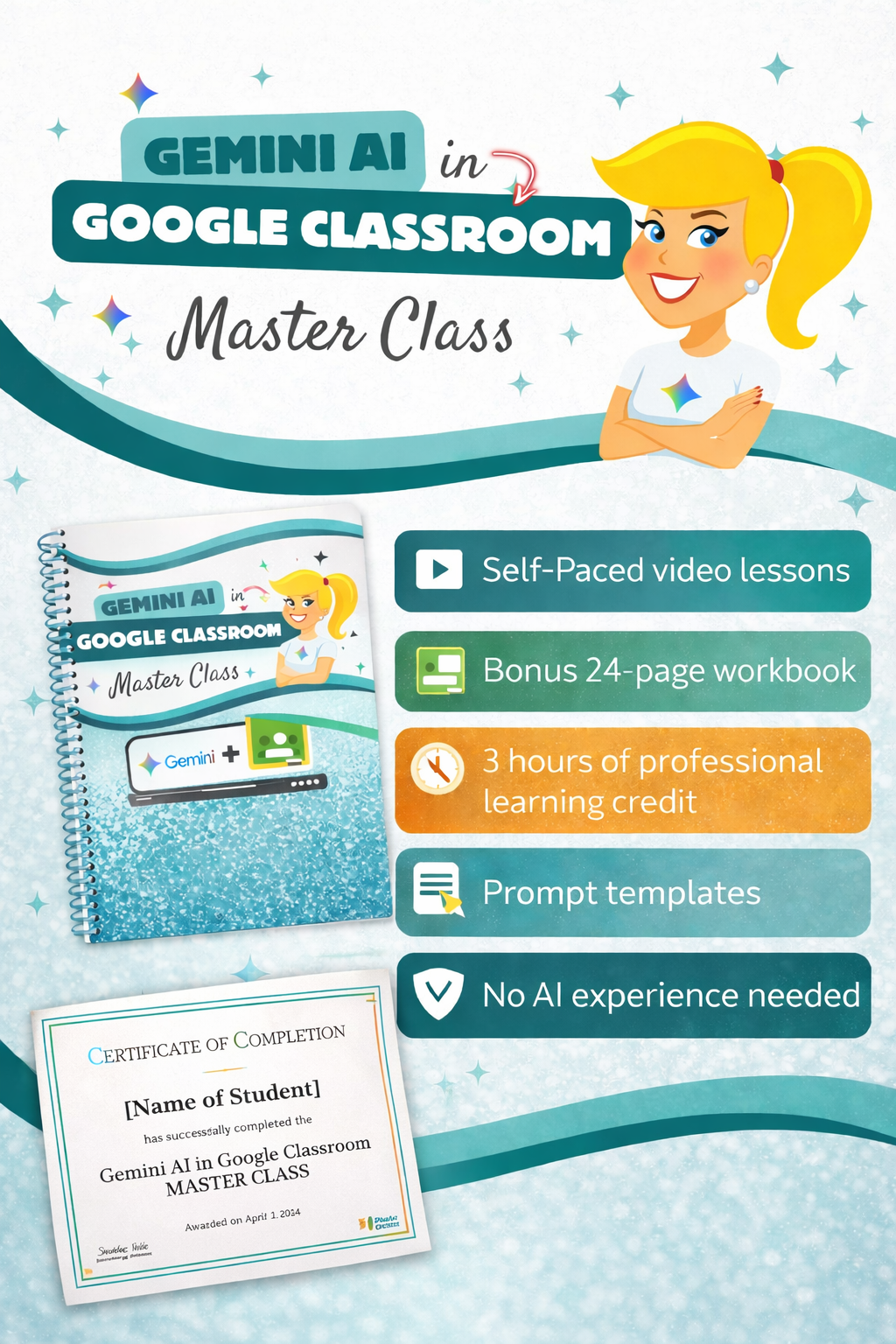
A few relevant courses to explore:
- Gemini AI in Google Classroom Master Class: Learn prompting and workflows for planning lessons, creating materials, and building assessments.
- New Ways to Love Google: Explore practical ideas using Gemini, Google Lens, Google Sites, and NotebookLM.
- Personalize Student Learning with Gemini: Learn a workflow for creating teaching materials with Gemini Canvas, Google Slides, Google Vids, and Google Classroom.
To use the Gemini features demonstrated inside Google Classroom, you need Google Workspace for Education with Gemini enabled by your school or district administrator.
Explore the ALL ACCESS Teacher Membership and browse the course catalog to choose what you want to learn next.
© Shake Up Learning 2025. Unauthorized use and/or duplication of this material without express and written permission from this blog’s author and/or owner is strictly prohibited. Excerpts and links may be used, provided that full and clear credit is given to Kasey Bell and Shake Up Learning with appropriate and specific direction to the original content on ShakeUpLearning.com. See: Copyright Policy.